How to use this reference guide
The purpose of this guide is to provide a reference for the types of content used to format and present the content of the Diablo Valley College website (the types of pages that hold the content, the fields and components used to format the content, and the images and documents used within the content), step-by-step procedures for completing the content entry tasks necessary to build, manage, and format the content, and the tasks for administering the website and the Drupal CMS.
The reference pages are grouped by category, with the topics listed within each category. Clicking on a topic reveals a description of the content management procedures and information covered by the topic. Below this description is a link to access the reference page for the topic.
Accessing this guide
The pages are accessible only when you are logged in to Drupal. This enables the guide to be an "internal" resource.
-
Basic navigation back to the main reference page
The reference guide is presented as a "menu" to enable access to the reference information within a few clicks. There is navigation in the left sidebar of the reference pages to return you to the main guide page.
Page Component reference pages
When you access the reference pages for the page components (the pages providing the specifications, content entry fields, content entry procedures, etc. for a component) there is an additional navigation link in the left sidebar. This is a link to the Page Components page that lists the components used to build and format content on website pages.
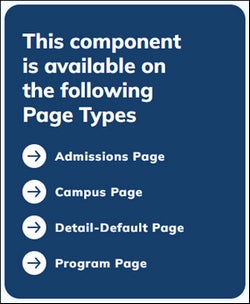
In addition, there is a callout with links to the page types in which the component is available to be used:
At the bottom of the page there is a section containing a link to the example page that shows how the component displays on the website.
Page component example pages
On the pages that provide examples of how the components format and display content on the website, the left sidebar navigation includes a link to the reference page for the component.
One one-column pages that provide examples of the compoenents, there is a "Navigation" heading near the top of the Main Body of the page providing the same links. The navigation is positioned here since one-column pages do not include a left sidebar into which to place navigation.
Drupal CMS Basics
-
This page covers how to log in to and log out of Drupal, an overview of the administrative interface, and how to change the password for your Drupal user account.
Go to the reference page
Working with Documents and Images
-
This page defines the media types used for the website, covers how to access the Media Manager where files are stored and managed, how to use the filters in the Media Manager to locate files, and how to upload, publish, unpublish, replace, and delete files.
Go to the reference page
Page Layouts and Page Types
-
There are two layouts for the Diablo Valley College website pages: one-column and two-column.
One-Column page types are used as "Landing" pages for the website sections, such as Life at DVC, Admissions, and Student Services. These page types use one area, the Main Body Area, to hold page content. This page type also is used for similar pages within the website, such as the "Landing" page for each of the campuses.
Two-Column page types are used for a variety of pages: general content pages within the website sections, news article pages, program pages, event pages, and employee profile pages. These page types use two areas, the Main Body Area and the Sidebar, to hold page content. The Main Body Area holds the primary content of the page and the Sidebar holds supporting content such as contact information and links, as well as navigation for the section of the website the page is in.
The Diablo Valley College website uses a number of different page types using these layouts for building and managing website content.
This section provides links to the reference page that covers the two types of page layouts and define and provides context for terms such as “sidebar,” “main body,” etc.
This section also includes a link to the reference page that defines the page types and provides links to reference pages for each page type. The reference pages indicate the type of content each type is used to build and provide detailed information on the content entry fields, components, and page properties settings used to enter and manage content in the page type.
-
Identifying the areas in which content is placed on the different types of pages and understanding where these areas are on a page will help you use this guide as many of the reference pages, especially those for the page components, refer to the areas when indicating where a component is placed on a page.
Additionally, understanding where the areas are on a page will help you to more quickly locate the content you need to update when opening a page to the editing screen, as the components are grouped by the page areas.
Go to the reference page -
This page lists the page types, indicates the type of content each type is used to build, and includes a link to a reference page that provides detailed information on the content entry fields, components, and page properties settings used to enter and manage content in the page type.
Go to the reference page
Managing Website Content
-
This page covers how to use access and use the Content screen and browse the website to locate pages to edit, how to use the filtering options on the Content screen to locate pages, and how to open a page for editing.
Go to the reference page -
This page provides an overview of the layout and sections of the page editing screen, the types of fields used to enter content, using page components, saving the updates, and updating the workflow status to progress the page through workflow.
Go to the reference page -
These are the components added to the Main Body Area and Side Bar Area of a page, through the Components and Sidebar Components sections of the page editing screen.
Use the link below to access a page that lists the components.
Each component in the list includes a brief description of how the component is used to format page content, the page types in which the component is available, and a link to the reference page providing links to view examples of the component on a page and detailed information on the component's content entry fields and content entry procedures.
Go to the reference page -
This page defines a page component, explains how the content fields in a component are organized and structured, and covers the procedures for adding a component to a page, changing the order of components on a page, and removing a component from a page.
Go to the reference page -
This page covers how to format content using the WYSIWYG editor: applying text styles, adding headings, creating links, inserting a simple block quote, and pasting content from an external source into the editor.
Go to the reference page -
This page covers the page properties and settings that are managed in the right column of the page editing screen. These include section menu placement, Metatags, XML sitemap settings, the URL Alias, and the field used to log summary notes on changes made to the page.
Go to the reference page -
This page covers the different starting points from which to start the page creation process, how to create a new page and input the basic required content, how to place the page within a website section, and the options for saving the new page (remains unpublished, is published immediately, etc.).
Go to the reference page -
Cloning an existing page is a way to create a new website page using the content of an existing page as the starting point.
When a page is cloned, a copy of the page is created. The content of this copy is updated as needed, the page is placed into a website section if necessary, and then saved. At this point the copy then becomes a new page.
In the new page, as much of the content of the original page can be retained as needed, content can be removed, and new content added.
This page covers the different starting points from which to start the page cloning process, the process for cloning a page, how to place the page within a website section, and the options for saving the new page (remains unpublished, is published immediately, etc.).
Go to the reference page -
This page covers the procedure for placing a page in a website section menu and adding the corresponding section navigation to the Sidebar Area for two-column pages.
Go to the reference page -
This page steps through the procedure for adding child pages under a program page. Adding child pages under a program page enables the program to have its own "section" for pages that support the program (apprenticeship information, application instructions, a welcome page, etc.).
Go to the reference page -
Instructions for creating a link to an aggregate page pre-filtered to display a specific set of results.
Go to the reference page -
This page covers the two ways by which event pages are created, the workflow for event pages, scheduling events to publish on a specific day and time, how events are unpublished and removed from the website, and the website event submission form.
Go to the reference page -
This page covers the various aspects of managing news articles on the website: the news article page type, how to create a news article, managing the content, fallback image, and labels for the filtering groups for the News aggregate, and managing the taxonomy terms used to tag and categorize news articles.
Go to the reference page -
This page covers the various aspects of managing programs on the website: the program page type, how to create a program, managing the content, URL of the "View All Programs" link in the Feed Programs components, and labels for the filtering groups for the Explore Our Programs search, and managing the taxonomy terms used to tag and categorize programs.
Go to the reference page -
This page covers the various aspects of managing employee profile pages on the website: the faculty/staff page type, how employee profile pages are created, managing the content, fallback image, and labels for the filtering groups for the Directory search, and managing the taxonomy terms used to tag and categorize employee profile pages.
Go to the reference page -
The Home page uses a unique page type that includes components designed exclusively for the content of this page.
There should be only one page of this page type published.
Go to the reference page -
This page covers how different types of users use the workflow, the workflow step options available to users who can and cannot publish pages, when to assign pages to workflow steps, and how the moderated content screen is used to track workflow progress.
Go to the reference page
Deleting and unpublishing pages
-
This page covers how to unpublish a page so that it is not visible to website visitors and how to submit a request for a page to be unpublished if your user account does not have the ability to unpublish pages.
Go to the reference page -
This page covers how to delete a page so that it is not visible to website visitors and removed from the CMS and what to do if your user account does not have the ability to delete pages.
Go to the reference page
Adding external links to the website keyword search index
The External Links content type is used create custom results "cards" for external links to be included in the website keyword search. These "cards" are visible only in the website keyword search results and link to an external URL.
-
This reference page covers the content entry fields for creating the "cards" for the external links and the field into which to add additional keywords for the website keyword search to match to expand the keywords that will match the external link.
External Links are created using the same basic process as creating a website page.
External Links are published and published directly and do not use the page workflow.
An External Link must be published to be searchable and included in the website keyword search results.
Go to the reference page
Website Announcements and Takeover
These are messages that display on all pages of the website. There are two options for the messaging: The Announcement that displays as an expandable banner at the top of all website pages and the Takeover that overlays all website pages and must be closed by the website visitor to access the site.
-
This page covers how to create a new announcement or takeover, how to enable (make visible on the website, how to disable (remove from the website), how to update an announcement or takeover currently visible on the website, and the functionality of the cookie that controls the visibility of the takeover.
Go to the reference page
Managing Aggregate Page Content
This section covers managing the content of the aggregate pages: the introduction text displayed above the aggregate results, the "No Results" content for the website keyword search, updating the placeholder image for results that do not have an image in the the news, events, and directory aggregates, and the labeling text for the groups of filters for filtering the aggregate results.
-
This page covers managing the content that is part of the aggregate pages themselves: the introduction text displayed above the aggregate results, the "No Results" content for the website keyword search, and updating the placeholder image for results that do not have an image in the the news, events, and directory aggregates.
Go to the reference page -
This page covers updating the labels for the sets of filtering options in the left side rail of aggregate pages.
The labels for the sets of filtering options in the left side rail of aggregate pages are updated directly in the Views that power the aggregate pages.
Go to the reference page
Website Menus
-
This page covers managing the website menus: how to access the menus management page, how to change the order and structure of menu links, how to add a custom link to a menu, how to disable a menu link, and how to delete a menu link.
Go to the reference page
Website Administration
-
This page covers managing the taxonomy groups, including accessing the taxonomy management area in Drupal, what each taxonomy group is used for, changing the order of the terms within a group, adding a taxonomy term to a group, and deleting a taxonomy term from a group.
Go to the reference page -
This page covers managing the set of images used to provide an image for the "card" of a custom menu link in the Child Page Grid component and in the Manual Page Grid component if the selected page does not include an image.
Go to the reference page -
This page covers managing the content of the custom pages displayed to website visitors when the 403 (Access Denied) and 404 (Not Found) response codes are returned in response to requests for pages and files.
Go to the reference page -
This page covers accessing the Theme Settings screen, updating the social media icon links and the website copyright statement for the global website footer.
Go to the reference page -
This page covers managing the sitemap file settings, the content inclusion settings, the default priority and revisit frequency for pages included in the sitemap, setting the content types to be included in the sitemap, rebuilding the sitemap, and overriding the default settings at the page level.
Go to the reference page -
This page covers accessing the redirect manager, creating a new redirect, editing an existing redirect, deleting a redirect, system-generated redirects, checking if redirects exist for a specific page, and creating a redirect from the page editing screen.
This page also covers how redirects can be checked and managed while editing a page: checking if there are redirects pointing to the page, creating a new redirect to the page, and deleting existing redirects to the page.
Go to the reference page -
This page covers accessing the Metatags management screen, locating the default metatags for content types, and updating the default SEO meta tag values for a content type.
Go to the reference page -
This page covers maintaining the search indices that power the website keyword search and the home page programs search: Accessing the search index configuration screens, checking the search index status, rebuilding the search index, managing the page types that are included in the search index, and reviewing content of Card Summary fields across site pages using a custom view.
Go to the reference page -
This page covers the faculty import process: Uploading a CSV data file, importing the file, how the fields in the CSV file map to content fields on the Faculty/Staff profile page, and important import settings.
Go to the reference page -
This page covers managing the settings for the module that opens external links and links to PDF files in a new browser tab/window.
Go to the reference page -
This page covers how to use the logs to locate requests that generate 403 Access Denied and 404 Not Found errors. This helps to identify requests that would require a redirect and to assist with minimizing broken links on the website.
Go to the reference page
Drupal/System Management
-
This page defines and explains the purposes of the cron job and the website cache, how to run the cron job manually, how to clear the website cache manually, and when these would be run manually.
Go to the reference page -
This page covers how to access the Locked Content screen listing locked pages, how to work with the list of locked pages, how to unlock a page from the locked pages list, and how to unlock a page from the page editing screen.
Go to the reference page -
This page covers the SMTP settings used for sending email notifications that are triggered by actions within Drupal, such as send an email notification when a new Drupal user account is created or requesting a password reset.
Go to the reference page -
This page covers the managing the settings on the Basic Site Settings screen: the site name (used as the sender name for emails and what appears after the "|" in the page title displayed in the browser tab when a website page is viewed) the site email address, the page designated as the site home page, and the pages designated as the 403 and 404 error pages.
Go to the reference page -
This page covers accessing the Workflow management screen, updating the page types that use workflow, modifying the state/status text for the workflow steps, and modifying the default workflow step applied to new pages.
Go to the reference page -
This page covers managing Drupal user accounts: including an overview of the user properties screens, assigning users to roles, assigning a shortcut set to a user, resetting a user's password, disabling a user, and deleting a user. This page also covers how to create roles for controlling content access and for assigning system abilities, and provides a list of existing roles, their purpose, and the permissions that the each role grants.
Go to the reference page -
This page covers the managing the content of the email messages generated through user account actions (forgot password, new user account notification, etc.) and the processes surrounding user management (who can create new user accounts, default behavior when creating and cancelling user accounts, and applying the password strength indicator).
Go to the reference page -
This page covers the configuration for managing user editing access. Access is controlled through two methods: website section menus and taxonomy.
The access that is controlled is the ability to open a page for editing. When a user is granted access to edit a page, the user is able to edit all of the content fields and sections available to the user when the user opens the page for editing.
Go to the reference page -
This page covers the managing the sets of shortcut links used in the administration pages: Accessing the shortcuts management screen, adding a link to a shortcut set, removing a link from a shortcut set, and changing the order of the links in a shortcut set, and creating a new shortcut set.
These are the sets of links displayed when Shortcuts is clicked in the Top Menu Bar when logged in to Drupal.
Go to the reference page
Special Topics and Troubleshooting
-
This page demonstrates how to apply specific classes to modify the list markers for single- and multi-level ordered lists and provides examples of the custom marker display.
Go to the reference page -
This page covers how to identify and correct a reference to a deleted page in a page selector field.
Go to the reference page
Managing the content of the reference pages
This page covers managing the content of the Content Management Reference pages.
-
This page covers managing the content of the Content Management Reference pages, the custom filters to exclude the pages from screens used for managing the content of the public-facing site, the custom "Content" and "Images" views for the Content Management Reference pages and images, and creating new reference pages.
Go to the reference page