Basic Concepts
Written by: Jermaine Holmes
Modules & Sub-modules
Besides the main Metatag module, the following Metatag extension modules and sub-modules are active:
- Metatag Open Graph extension
- Metatag Views extension
- Metatag Schema.org extension
- WebPage sub-module
- Article sub-module
- Person sub-module
- Events sub-module (for now, needs to be configured per event – need to investigate)
Configuration Settings
The SEO module settings operate on an inheritance framework, meaning they are organized into multiple levels. Configuration settings are applied in the following order:
- Metatag configurations on individual edit pages
- Metatag configurations per child Content Template (for content pages) or per View (for taxonomy pages)
- Metatag configurations from the main Content Template, followed by Global settings
Configuration Areas
Metatag settings are configurable from multiple areas of the website, sometimes making them a challenge to find. Here’s where you can modify the various settings:
- Main Module: Extend -> search for “SEO” -> Metatag -> expand dropdown -> Configure
- ALSO: Configuration -> Search and metadata -> Metatag
- Two Tabs: Metatag defaults, Settings
- Metatag defaults: where you can configure the Global and Content Template settings
- Settings: where you can activate content types and Metatag form inputs for editing, including activating edits for particular content types and for particular Metatag parameters.
- For Schema configurations, the additional step is to click on “Settings” tab and then map the Schema.org type to the proper content types or templates in the CMS (aka “Entity type / Group Mapping”)
- Template: follow the instructions for “Main Module” and then Metatag defaults -> find the desired template -> click on “Edit” in the template column
- View: Structure -> Views -> find the desire view -> click on “Edit” in the view column -> look for a content area label named “Meta tags” -> click “Overridden” or “Default”
- When making changes here, click on “Apply” and then click on “Save”.
- Individual Page: enter the Edit screen for the page -> find and expand the “Metatags” dropdown
- If you see expected meta fields missing, follow the steps for activating Metatag form fields in configuration settings.
- For Schema.org, only the authorized sub-module types will appear. To authorize more sub-module types to display, follow the steps for Schema.org in the section "Schema.org Settings" on the Content Management Reference: Managing the Default Metatags for SEO.
- If you see expected meta fields missing, follow the steps for activating Metatag form fields in configuration settings.
For more specific instructions about making changes to settings, please follow the steps in the section "Updating the default Metatag settings" on the page Content Management Reference: Managing the Default Metatags for SEO.
Specific Sitewide Settings
-
Meta settings that apply to every page on the website and can be overridden by settings on any View, Template, or Page screen.
Location: Metatag defaults
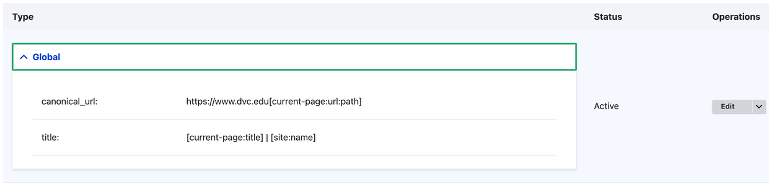
The following are the field names and the text that should be inputted into those fields:
- canonical_url:
https://www.dvc.edu[current-page:url:path] - title:
[current-page:title] | [site:name]
- canonical_url:
-
"taxonomy canonical URL" refers to the ACTUAL URL address of a taxonomy page. Since this is a taxonomy setting, the Metatag configuration can be found in Views.
Location: Views
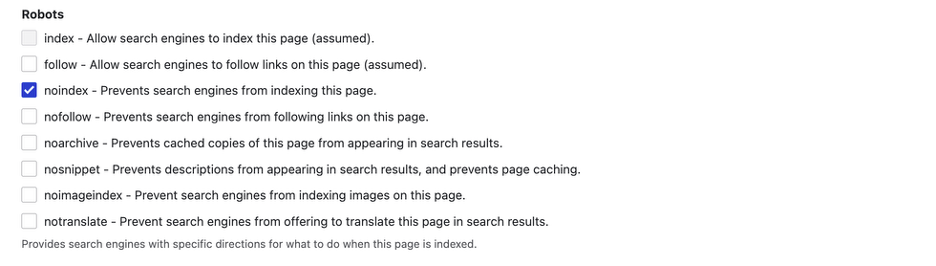
Since these pages are not being used on the website, but automatically generated by Drupal, our only option is to add the NOINDEX meta HTML to these pages so that Google removes them from the index and not index future taxonomy pages.
- Robots: select the "noindex" checkbox.
-
SOLR Search view controls site search pages and this area is where to prevent site search pages from appearing in most search engines indexes.
Location: Views
Our only option is to add the NOINDEX meta HTML to these pages so that Google removes them from the index and not index future site search pages.
- Robots: select the "noindex" checkbox.
-
403, 404, and other error pages use Content Templates plus they should not show in search engine indexes.
Location: Metatag defaults - 403 access denied & 404 page not found
Our only option is to add the NOINDEX meta HTML to these pages so that they stay out of search engine indexes.
- Robots: select the "noindex" checkbox.
-
Content Templates apply Metatag settings to pages which use a pre-configured template. These settings will override Global and the "Content" template configurations, but will not override Metatag settings on individual pages. As of this writing, there are 10 Content Templates:
- Content
- Content: Admissions
- Content: Campus
- Content: Detail - Default
- Content: Event **
- Content: Faculty / Staff **
- Content: Home
- Content: Landing
- Content: News **
- Content: Program **
Most template types have the same, or very similar, Metatag settings. The Content Template names with asterisks feature differentiated Metatag configurations unique to pages which use those templates.
"Content" is the main template, and other templates inherit some settings from that one. Therefore, here are the field names and text inputs for the "Content" template Metatag settings:
- canonical_url:
https://www.dvc.edu[node:url:relative] - title:
[node:title] | [site:name] - schema: (uses the same WebPage Schema settings that are on Page Type settings - see the proceeding section labeled "Sitewide Page-type Settings")
Location: Metatag defaults
Specific Page-type Settings
-
These are Metatag settings that apply to the page designated as the website's homepage: "Big Futures Start Here."
Location: "Big Futures Start Here" - Homepage Edit Screen
META HTML fields:
- canonical_url:
https://www.dvc.edu[node:url:relative] - title:
[site:name] | Pleasant Hill & San Ramon - description:
DVC is a public community college in California that offers transfer degrees, career education programs, and short-term certificates. Learn on one of the two campuses or online, and explore your interests, goals, and options with DVC.
Schema.org Types Used: WebPage
- Schema.org: WebPage - Fields & Values
- @type:
WebPage - @id:
https://www.dvc.edu[node:url:relative] - description:
[node:field_card_summary] - publisher:
- @type:
CollegeOrUniversity - @id:
https://www.dvc.edu[node:url:relative] - url:
https://www.dvc.edu[node:url:relative] - name:
Diablo Valley College - sameAs:
https://www.instagram.com/diablovalleycollege/,https://www.facebook.com/DVC.Vikings,https://www.linkedin.com/school/163444/,https://www.youtube.com/@diablovalleycollege8274
- @type:
- @type:
- canonical_url:
-
These are Metatag settings that apply to pages designated as News Articles. "canonical_url" and "title" settings are inherited from the "Content" template (also from "Global" settings but those settings are mostly not relevant for News Articles).
Location: Metatags default
META HTML fields:
- canonical_url:
https://www.dvc.edu[node:url:relative] - title:
[node:title] | [site:name]
Schema.org Types Used: Article, WebPage
- Schema.org: Article - Fields & Values
- @type:
Article - @id:
https://www.dvc.edu[node:url:relative] - headline:
[node:title] - description:
[node:field_card_summary] - image:
- @type:
ImageObject - representativeOfPage:
true - url:
[node:field_image:entity:field_media_image:4_3_2400x1800:url]
- @type:
- datePublished:
[node:created:html_datetime] - publisher:
- @type:
CollegeOrUniversity - @id:
https://www.dvc.edu - url:
https://www.dvc.edu - name:
Diablo Valley College - sameAs:
https://www.instagram.com/diablovalleycollege/,https://www.facebook.com/DVC.Vikings,https://www.linkedin.com/school/163444/,https://www.youtube.com/@diablovalleycollege8274
- @type:
- @type:
- Schema.org: WebPage - Fields & Values
- @type:
WebPage - @id:
https://www.dvc.edu[node:url:relative] - description:
[node:field_card_summary] - publisher:
- @type:
CollegeOrUniversity - @id:
https://www.dvc.edu - url:
https://www.dvc.edu - name:
Diablo Valley College - sameAs:
https://www.instagram.com/diablovalleycollege/,https://www.facebook.com/DVC.Vikings,https://www.linkedin.com/school/163444/,https://www.youtube.com/@diablovalleycollege8274
- @type:
- @type:
- canonical_url:
-
These are Metatag settings that apply to pages designated as Programs pages, which will only appear on the main pages for programs and not on sub-pages such as Welcome Letters.
Location: Metatags default
META HTML fields:
- canonical_url:
https://www.dvc.edu[node:url:relative] - title:
[node:title] | DVC
Schema.org Types Used: WebPage
- Schema.org: WebPage
- @type:
WebPage - @id:
https://www.dvc.edu[node:url:relative] - description:
[node:field_card_summary] - publisher:
- @type:
CollegeOrUniversity - @id:
https://www.dvc.edu - url:
https://www.dvc.edu - name:
Diablo Valley College - sameAs:
https://www.instagram.com/diablovalleycollege/,https://www.facebook.com/DVC.Vikings,https://www.linkedin.com/school/163444/,https://www.youtube.com/@diablovalleycollege8274
- @type:
- @type:
- canonical_url:
-
These are Metatag settings that apply to pages designated as Directory entries. "canonical_url" and "title" settings are inherited from the "Content" template (also from "Global" settings but those settings are mostly not relevant for Directory pages).
Location: Metatags default
META HTML fields:
- canonical_url:
https://www.dvc.edu[node:url:relative] - title:
[node:title] | [site:name]
Schema.org Types Used: Person, WebPage
- Schema.org: Person - Fields & Values
- @type:
Person - name:
[node:title] - url:
https://www.dvc.edu[node:url:relative] - sameAs:
https://www.dvc.edu[node:url:relative] - @id:
https://www.dvc.edu[node:url:relative] - worksFor:
- @type:
CollegeOrUniversity - @id:
https://www.dvc.edu - name:
Diablo Valley College - url:
https://www.dvc.edu - sameAs:
- @type:
- @type:
- Schema.org: WebPage - Fields & Values
- @type:
WebPage - @id:
https://www.dvc.edu[node:url:relative] - description:
[node:field_card_summary] - publisher:
- @type:
CollegeOrUniversity - @id:
https://www.dvc.edu - url:
https://www.dvc.edu - name: vDiablo Valley College
- sameAs:
https://www.instagram.com/diablovalleycollege/,https://www.facebook.com/DVC.Vikings,https://www.linkedin.com/school/163444/,https://www.youtube.com/@diablovalleycollege8274
- @type:
- @type:
- canonical_url:
-
These Metatag settings apply to the main Interest Areas page. META tags are inherited from the Content: Detail - Default Template and Schema settings are based on Schema: WebPage settings that are configured in the template.
META HTML fields:
- canonical_url:
https://www.dvc.edu[node:url:relative] - title:
[node:title] | [site:name] - description:
Explore Diablo Valley College's interest areas: Discover programs and career pathways tailored to your passions and goals for a successful educational journey.
Schema.org Types Used: WebPage
- Schema.org: WebPage - Fields & Values
- @type:
WebPage - @id:
https://www.dvc.edu[node:url:relative] - description:
[node:field_card_summary] - publisher:
- @type:
CollegeOrUniversity - @id:
https://www.dvc.edu - url:
https://www.dvc.edu - name:
Diablo Valley College - sameAs:
https://www.instagram.com/diablovalleycollege/,https://www.facebook.com/DVC.Vikings,https://www.linkedin.com/school/163444/,https://www.youtube.com/@diablovalleycollege8274
- @type:
- @type:
- canonical_url:
-
These are Metatag settings that apply to pages designated as Event listings. "canonical_url" and "title" settings are inherited from the "Content" template (also from "Global" settings but those settings are mostly not relevant for Directory pages).
Location: Metatags default
META HTML fields:
- canonical_url:
https://www.dvc.edu[node:url:relative] - title:
[node:title] | [site:name]
Schema.org Types Used: WebPage, Event
- Schema.org: WebPage - Fields & Values
- @type:
WebPage - @id:
https://www.dvc.edu[node:url:relative] - description:
[node:field_card_summary] - publisher:
- @type:
CollegeOrUniversity - @id:
https://www.dvc.edu - url:
https://www.dvc.edu - name:
Diablo Valley College - sameAs:
https://www.instagram.com/diablovalleycollege/,https://www.facebook.com/DVC.Vikings,https://www.linkedin.com/school/163444/,https://www.youtube.com/@diablovalleycollege8274
- @type:
- @type:
The Event Schema is live, but not all the data is populated per event listing. Some of the data input fields are not available [yet] to the Metatag module, so the fields marked with an asterisk (**) will require manual entry.
For the "startDate" and "endDate" fields, the dates and times will need to be combined into one long string, in the ISO-8601 format. The format uses military-time, and follows this format: "YYYY-MM-DDTHrHr:MinMin:SecSec (Y = Year, M = Month, D = Day, Hr = Hour, Min = Minute, Sec = Second).
Example, if the date of an event is April 6, 2026 at 5:00 p.m. and ends at April 6, 2026 at 6:00 p.m., then the string for the "startDate" field will need to be "2026-04-06T17:00:00" and the string for the "endDate" field will need to be "2026-04-06T18:00:00". The conversion from date/time to ISO format is best done using an AI LLM prompt. Refer to the section at the end of this page titled, "AI Prompt for Date/Time ISO Conversion."
- Schema.org: Events - Fields & Values
- @type:
Event - @id:
https://www.dvc.edu[node:url:relative] - name:
[current-page:title] - eventStatus:
EventScheduled - **description:
(copy from the edit screen description field or Asana) - **startDate:
(input ISO-8601 string) - **endDate:
(input ISO-8601 string) - image:
- @type:
ImageObject - url:
[node:field_image:entity:field_media_image:4_3_2400x1800:url]
- @type:
- organizer:
- @type:
CollegeOrUniversity - @id:
https://www.dvc.edu - sameAs:
https://www.instagram.com/diablovalleycollege/,https://www.facebook.com/DVC.Vikings,https://www.linkedin.com/school/163444/,https://www.youtube.com/@diablovalleycollege8274
- @type:
- place:
- @type:
Place - name:
Diablo Valley College - url:
https://www.dvc.edu/events
- @type:
- address:
- @type:
PostalAddress - addressCountry:
USA - url:
https://www.dvc.edu/events - [[ Location Fields if "Pleasant Hill" campus event ]]
- **streetAddress:
321 Golf Club Road - **addressLocality:
Pleasant Hill - **addressRegion:
CA - **postalCode:
94523
- **streetAddress:
- [[ Location Fields if "San Ramon" campus event ]]
- **streetAddress:
1690 Watermill Road - **addressLocality:
San Ramon - **addressRegion:
CA - **postalCode:
94582
- **streetAddress:
- @type:
- @type:
AI Prompt for Date/Time ISO Conversion
Here's a GPT prompt you can use that will turn a string containing the full date and time into an ISO-8601 format:
Turn an input date/time value into 8601 format. Do not add any explainers, only output the value. Should expect at least Month, Date, and Year. User can input time optionally. If you can't convert into 8601 format based on the input, alert the user and DO NOT ever guess.If you're using ChatGPT and plan to populate this field often, then it's recommended that you create a Custom GPT using this prompt to save time and effort.
- canonical_url: